Vuescan Vs Nikon Scan
I set out to create a direct comparison between two popular scanning software options—VueScan and Nikon Scan 4—using the Nikon Coolscan V.
For this test, I selected three different film samples to evaluate how each software handles a range of real-world conditions: two slides and one underexposed negative. One slide was in excellent condition, while the other showed significant wear, including scratches and age-related damage. The negative was intentionally underexposed to see how well each program could recover detail.
The first set of images presented are straight, unedited scans from each software, allowing for a true side-by-side comparison. Following that, I’ll share the same images after light adjustments to demonstrate how each scan responds to post-processing.
I have my own preference when it comes to which software performs best—but I’ll let you explore the results and decide for yourself.
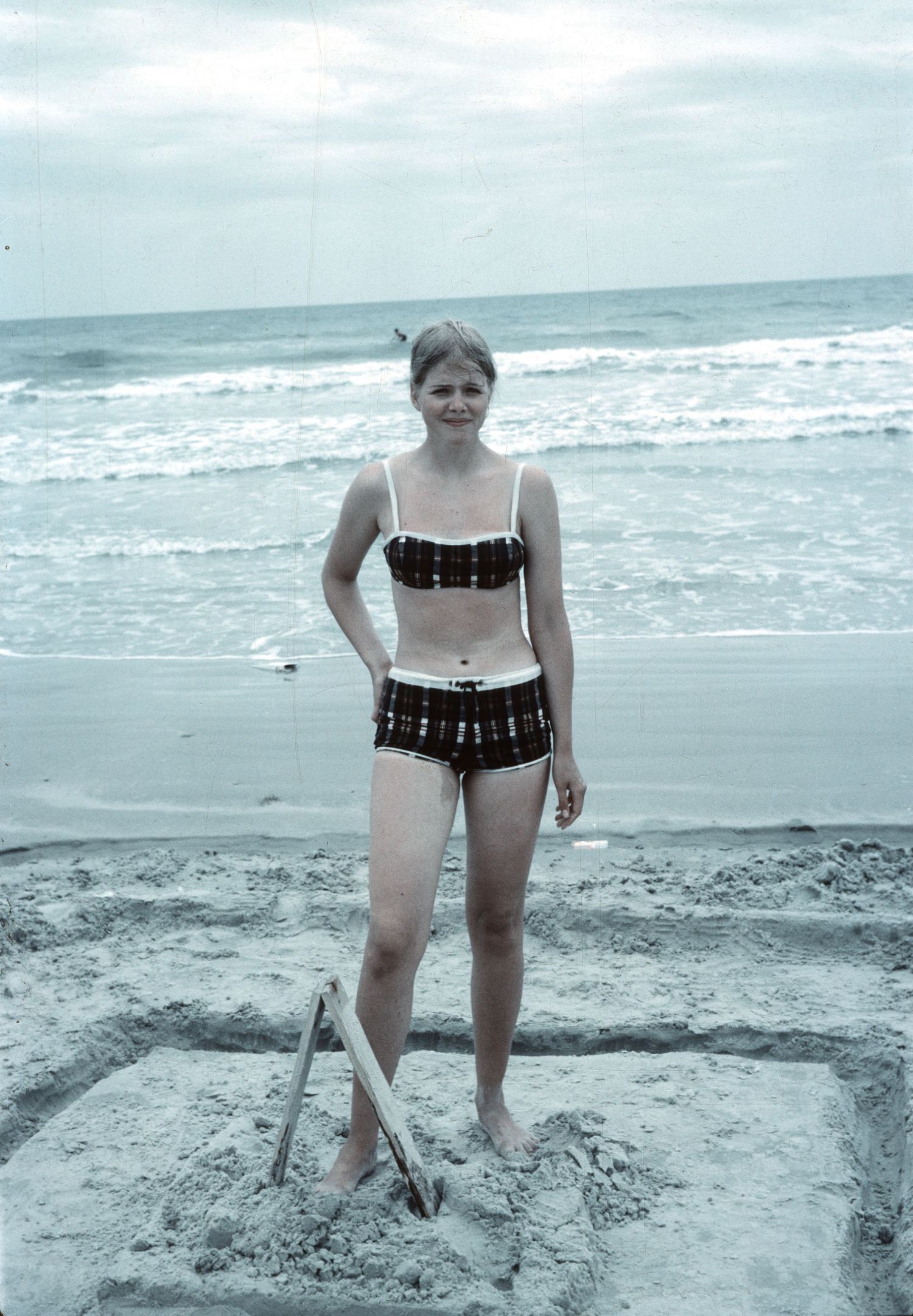
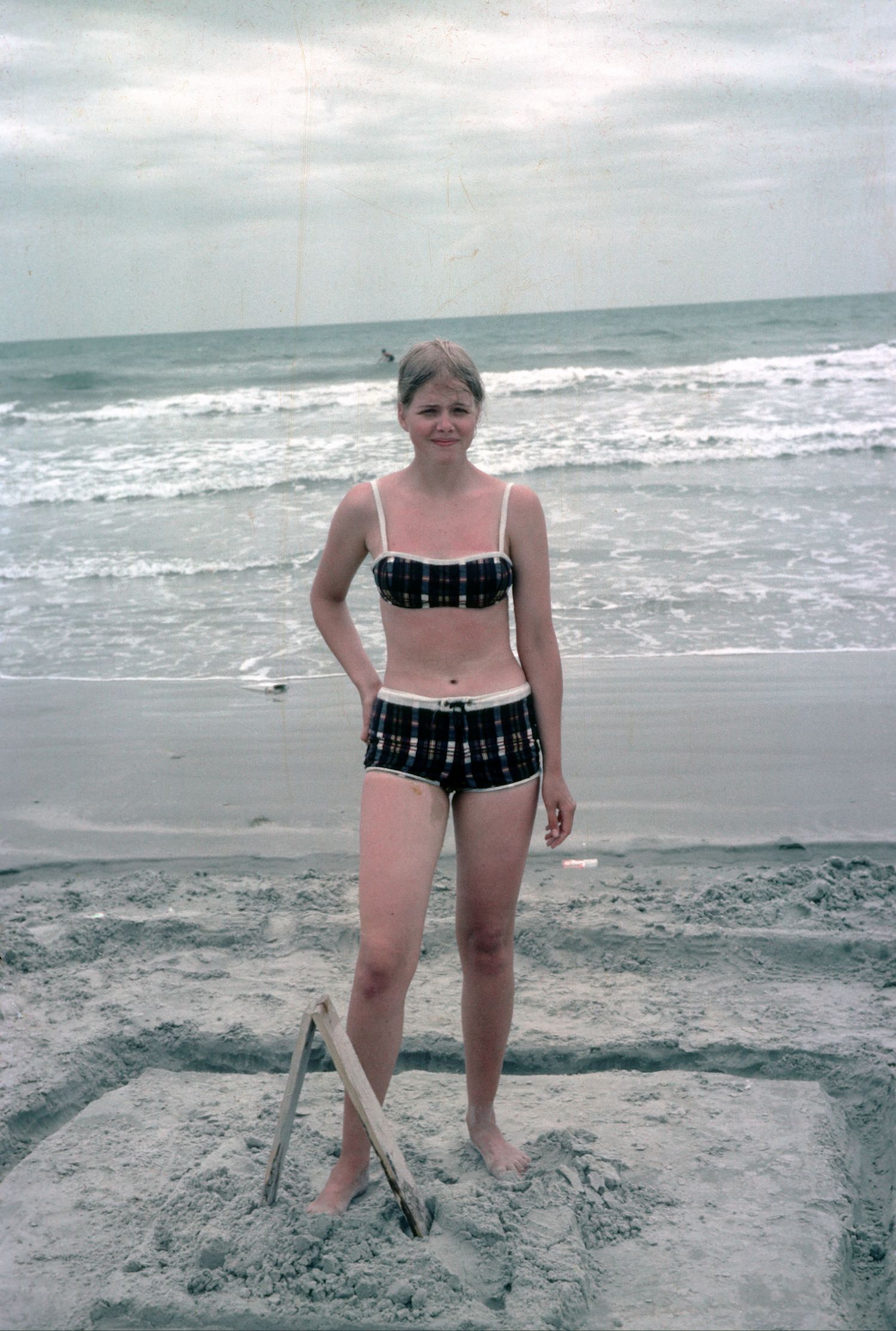
Vuescan - Unedited
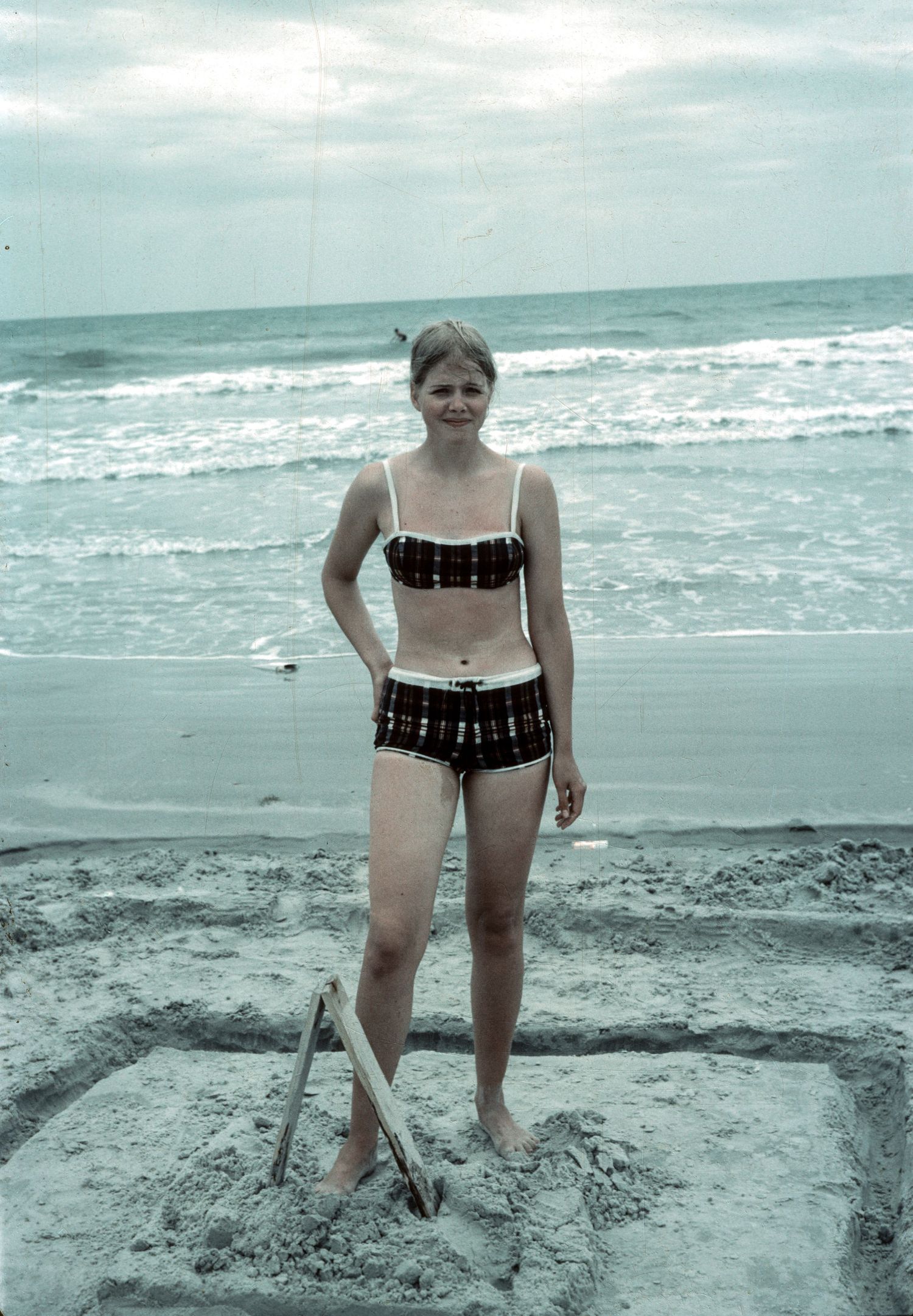
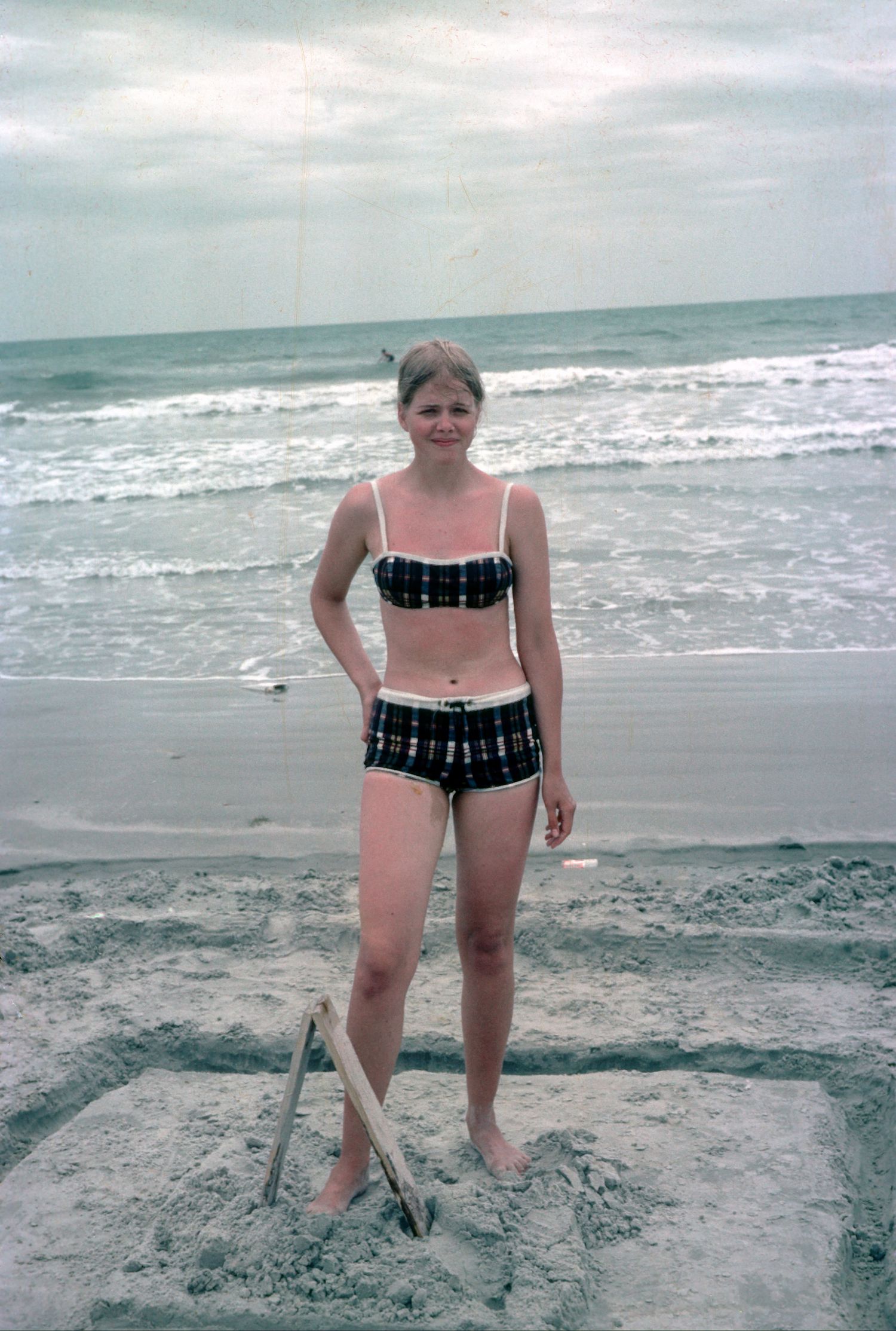
This first image is of the slide that was very old and full of scratches and a bit faded. Vuescan did decent with the ICE to remove scratches, but still kept it very blue and the skin tones are very cold as well. Turning on color restore or fading restoration options did not help.
Nikon Scan 4 -Unedited
Here you see the same slide from Nikon Scan, the colors are much better, not perfect, Ice did a good job as well, for how badly scratched it was. Skin tones look much more normal, and the sand looks more like sand.
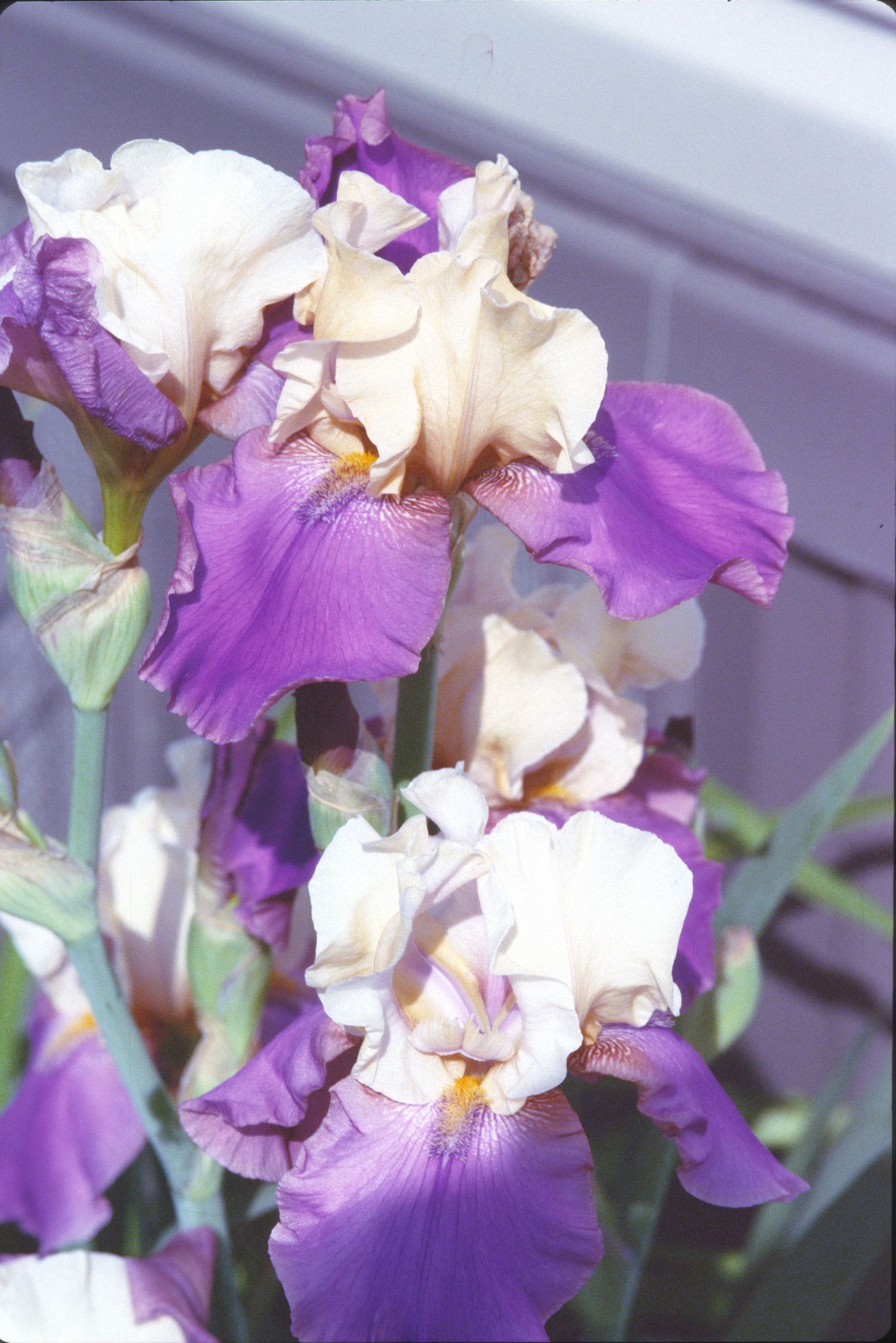
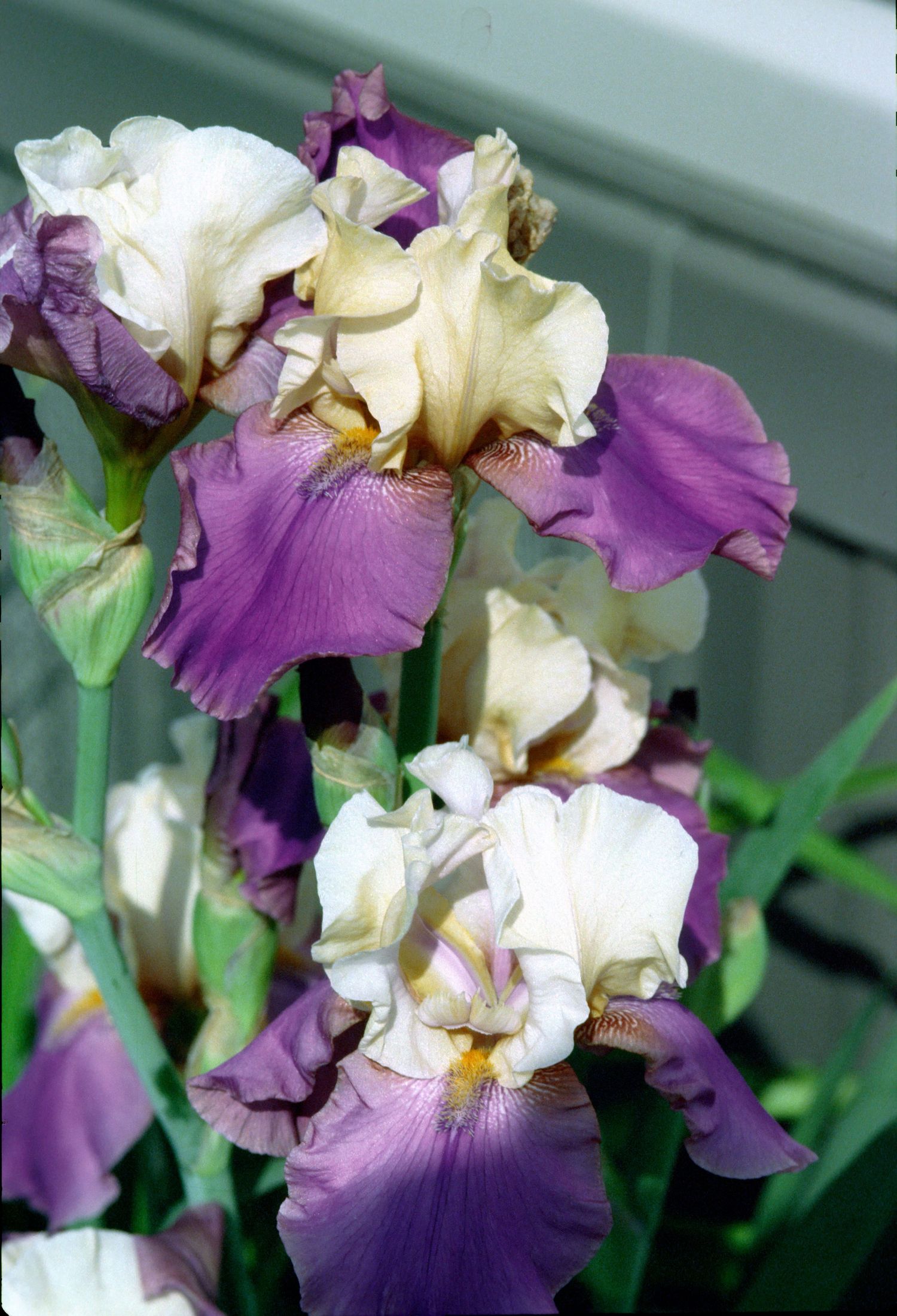
Vuescan
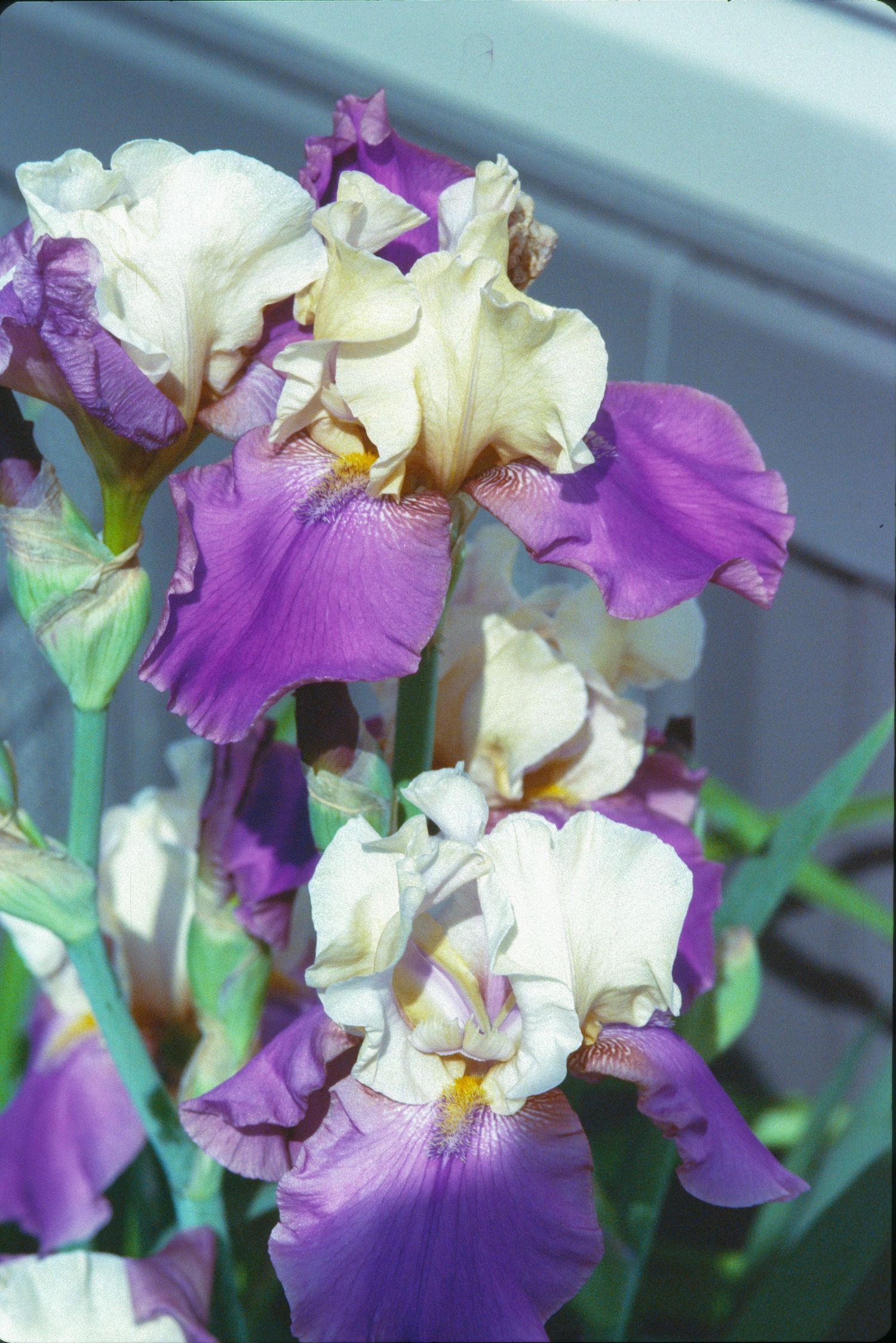
Here we have a new slide from Ektachrome straight from the scanner. It looks pretty good. But it has a slight purple cast. Also the colors arent bad, overall it is very acceptible.
Nikon Scan 4
On this scan, the colors are more vibrant, detail is more apparent. Overall I really like this scan, it does have a very slight green tint, but that is very easily correctable. To be the detail in the lines and parts of the flowers are sharper than the vuescan image. But again both are good scans and your opinion of which you like better can vary.


Vuescan
This image was underexposed Kodak Kodacolor 100 and in a shaded area. It seems vuescan colors are a bit shifted and muted, skin tones are way off. The highlights arent as vibrant either.
Nikon Scan
If we look at this one, the highlights retain lots of detail, the colors are more vibrant, skin tones look more natural, even with the face being darker. I more detail was able to be retained and extracted here. Granted you don't want to underexpose film, but I do feel like their is a better chance of saving this scan versus the Vuescan sample.

Slight edits on Vuescan
Here are some of the edits I did on Vuescan, I did slight white balance adjustments, and hit the auto button for the adjustments. So nothing crazy, the color cast of purple is now gone in the Iris slide, it looks great and is very acceptable. The colors of the underexposed negative are better and does look much better than the scan. The beach slide is better but still very cool, you try to warm it up much more and the colors go way off.


Slight edits on Nikon Scan 4
As you can see, I did the same exact type of edits on these as I did the other scan, all very slight. The beach slide looks great for how bad of shape it is, could i do a little more to it you bet, but overall I am extremely happy with it. The iris looks amazing, great colors, great detail, this is my favorite version of the 2 scans. Finally the underexposed negative, overall it looks great, considering the beginning image.
In Conclusion
After reviewing all of the images, the question becomes simple: which software stands out, and is there a clear winner?
Both VueScan and Nikon Scan 4 are capable tools, and each has its place. VueScan is a reliable, modern solution that continues to receive updates and performs especially well with flatbed scanners. It’s accessible, versatile, and produces consistently strong results.
However, when paired specifically with the Nikon Coolscan V, Nikon Scan still holds a distinct edge. The scans it produces tend to be larger in file size, retaining more image data, which translates into greater detail and richer color. In this comparison, those differences were noticeable.
For me, that makes the choice clear—Nikon Scan comes out on top.
That said, it’s not without its drawbacks. Nikon Scan is legacy software, no longer supported, and getting it to run on modern systems can require some extra effort. For many users, that alone may be a deciding factor.
In the end, both programs are excellent in their own right. The “best” option ultimately depends on your workflow, your equipment, and how much time you’re willing to invest in setup. Hopefully, this comparison helps shed some light on the strengths of each and guides you toward the right choice for your needs.